Enabling SSO
Enabling SSO for sub-accounts
Admin of an enterprise account can enable SSO while creating sub-accounts. Just ensure that the user credentials associated with the identity provider are mapped with the sub-account usernames in IDrive.
To create an SSO enabled Sub-account,
- Sign in to idrive.com with your username and password.
- From the Sub-accounts tab, click
 . The Create Sub-account screen appears.
 - Enter First Name, Last Name, and Email Address of your sub-account.
- Select the Single Sign-On checkbox.
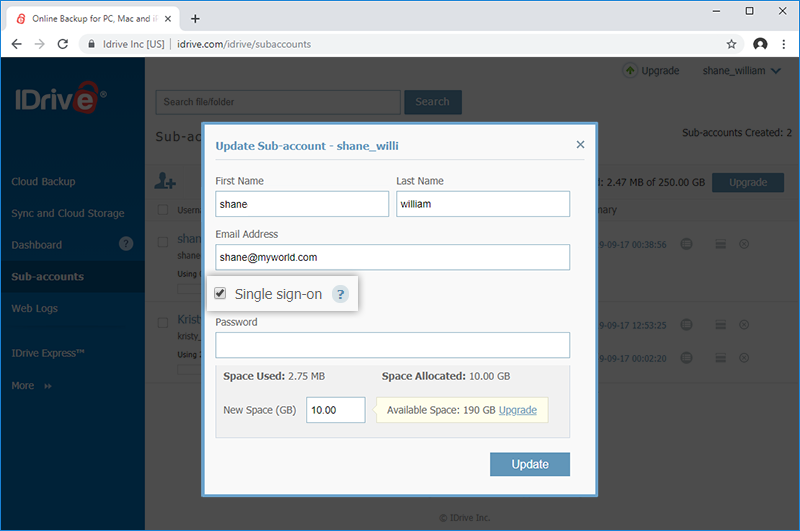
- Allocate storage space and click Create Sub-Account.
Alternatively:
- Sign in to idrive.com with your username and password.
- On the Dashboard tab, click
 .
.
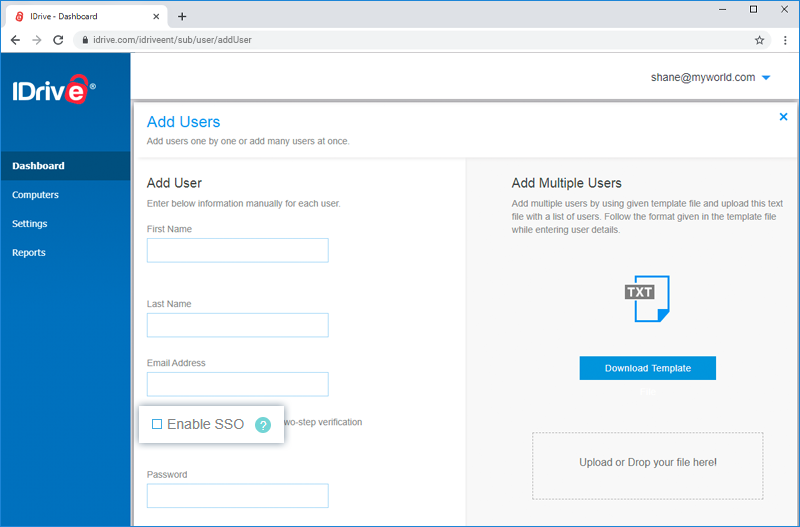
- Select Add Users from the list. The Add Users screen appears.
- Enter First Name, Last Name, and Email Address.
- Select the Enable SSO checkbox.
Note: If you select the checkbox, you won't be able to set the password. - Click Add User.