Vmware
If your question is not addressed below, contact us through our support form and we will get back to you shortly.
- Does IDrive® 360 support incremental backups for VMware virtual machines?
- How do I disable Change Block Tracking (CBT) for VMware backup?
- Which ports are required by the IDrive® 360 desktop application to perform VMware backup and restore operations?
- How do I test VMware connectivity to port 902?
- How do I backup VMware virtual machines?
- How do I view and backup virtual machines from vCenter?
- Can I backup VMware virtual machines to a network-mapped drive or NAS drive?
- How do I backup VMware virtual machines to a network computer?
- How do I backup VMware virtual machines to a network location or NAS?
- What are the system requirements for IDrive® 360 VMware Backup?
- Do I need to turn off or shut down virtual machines to perform a backup?
- How secure is data transferred during VMware backup and restore?
- Do backup and restore operations handle independent disks and RDM disks?
- Does IDrive® 360 support backing up virtual machines with Unicode or Windows special characters in their names?
- Does VMware restore support different virtual disk format conversions?
- Does IDrive® 360 VMware Online Backup support SAN and HotAdd transport modes?
- How do I restore virtual machines to a VMware server using Online Restore?
- How do I restore virtual machines to a VMware server using Local Restore?
- How do I restore virtual machines from a vCenter server?
- How can I restore VMware virtual machines from a network location?
- Can I restore VMware virtual machines from a network-mapped drive or NAS drive?
- Is an additional or external storage volume required for VMware backup?
- Can I attach a VMDK file from IDrive® 360 VMware Backup to a different VMware server?
- Does VMware ESXi require a licensed version to perform backups?
- What is the maximum hard disk size of a VM that I can backup?
Does IDrive® 360 support incremental backups for VMware virtual machines?
Yes. After the initial full backup, all subsequent backups are incremental.
How do I disable Change Block Tracking (CBT) for VMware backup?
To disable CBT,
- Power off the virtual machine.
- Right-click the virtual machine and select 'Edit Settings'.
- Click 'Options'.
- Under 'Advanced', click 'General', and then click 'Configuration Parameters'.
- Set the 'ctkEnabled' parameter to false for the required SCSI disk.
- Power on the virtual machine.
Which ports are required by the IDrive® 360 desktop application to perform VMware backup and restore operations?
Ensure that the following ports are open and accessible on the source host:
- TCP 443
- TCP 902
These ports are required for VMware backup and restore operations.
How do I test VMware connectivity to port 902?
To verify connectivity to port 902 on an ESXi host, run the following command from a command prompt:
C:\>telnet server 902
If the connection is established successfully, the port is accessible.
How do I backup VMware virtual machines?
To backup VMware virtual machine(s),
- Sign in to the IDrive® 360 desktop application and click 'Server Backup'.
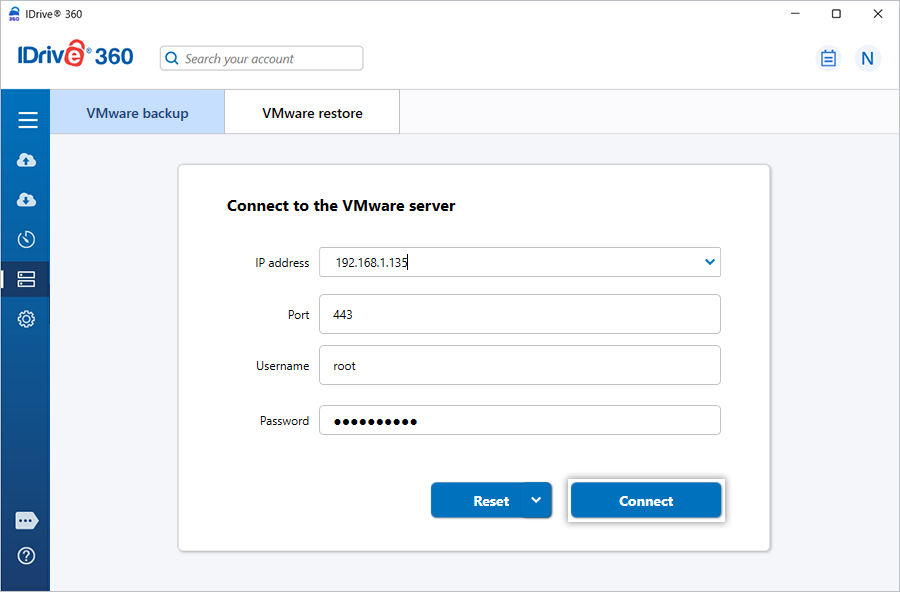
- Click 'VMware'. The VMware login screen appears.
- Enter valid credentials and click 'Connect'.
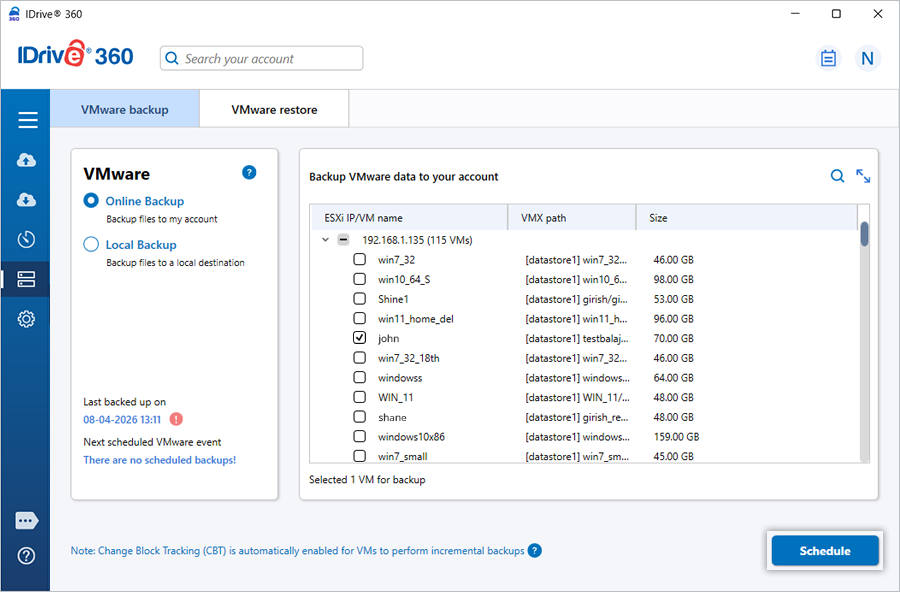
- Select 'Online Backup' or 'Local Backup'.
Note: If you select 'Online Backup', the backup is stored in your IDrive® 360 cloud account. If you select 'Local Backup', the backup is stored on the selected local drive.
- Select the virtual machine(s).
- Click 'Schedule'.
- Configure the backup schedule or start the backup immediately.
How do I view and backup virtual machines from vCenter?
To backup multiple ESXi virtual machines,
- Sign in to the IDrive® 360 desktop application and click 'Server Backup'.
- Click 'VMware'.
- Enter the IP address, Port, Username, and Password.
- Click 'Connect'.
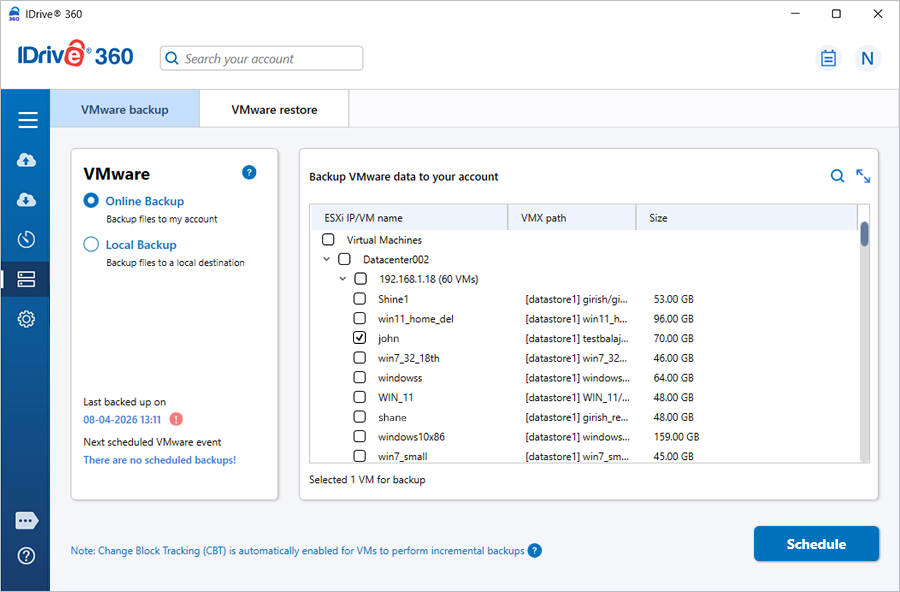
- Select 'Online Backup' or 'Local Backup'.
- Select the required virtual machines.
- Click 'Schedule'.
- Configure the backup schedule or start the backup immediately.
Can I backup VMware virtual machines to a network-mapped drive or NAS drive?
Yes. You can backup VMware virtual machines to a network-mapped drive or NAS drive.
To backup VMware virtual machine(s) to a network-mapped drive or NAS drive,
- Sign in to the IDrive® 360 desktop application and click 'Server Backup'.
- Click 'VMware'.
- Enter valid credentials and click 'Connect'.
- Select 'Local Backup'.
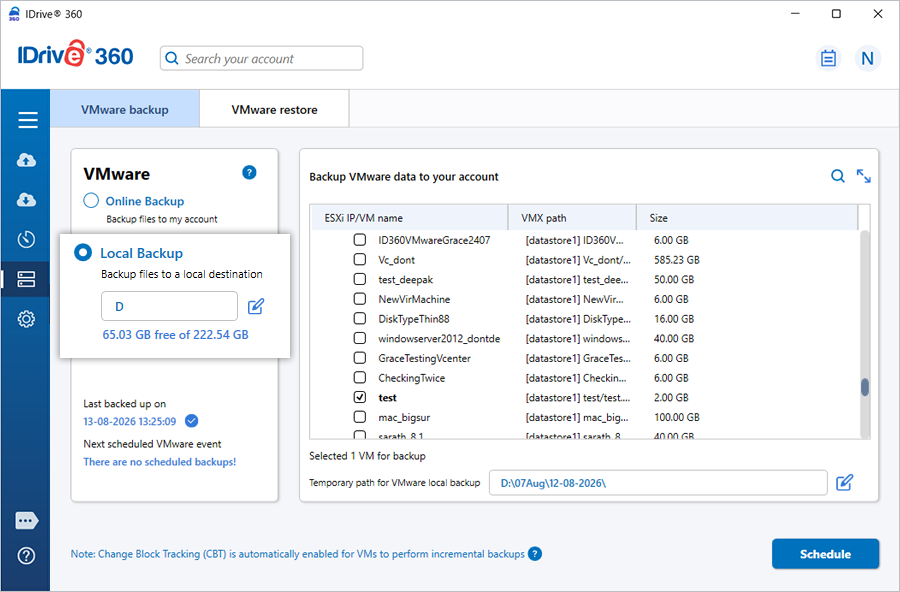
- Select the virtual machine(s).
- Select the network-mapped drive or NAS drive as the backup location.
- Enter the authentication credentials.
- Click 'Authenticate'.
- Click 'Schedule'.
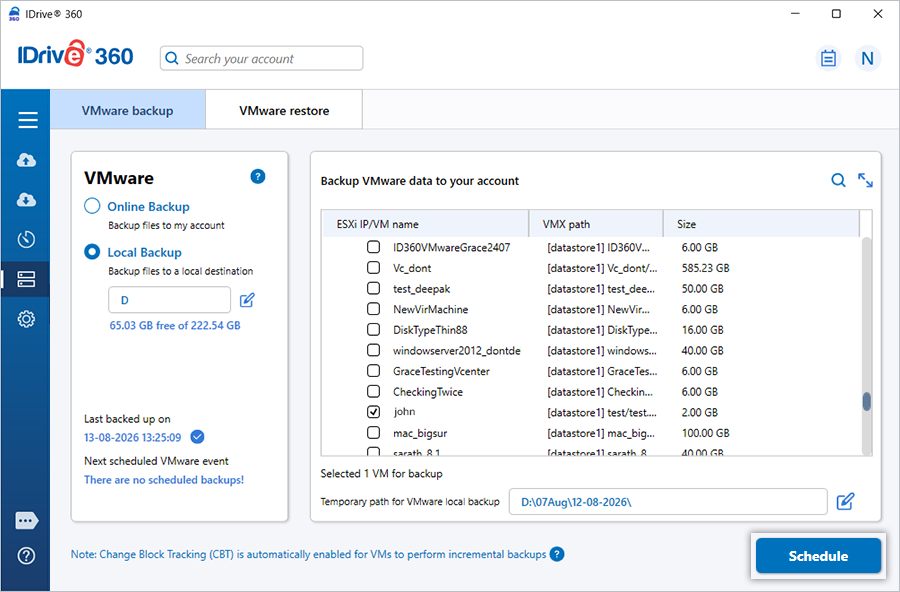
- Configure the backup schedule or start the backup immediately.
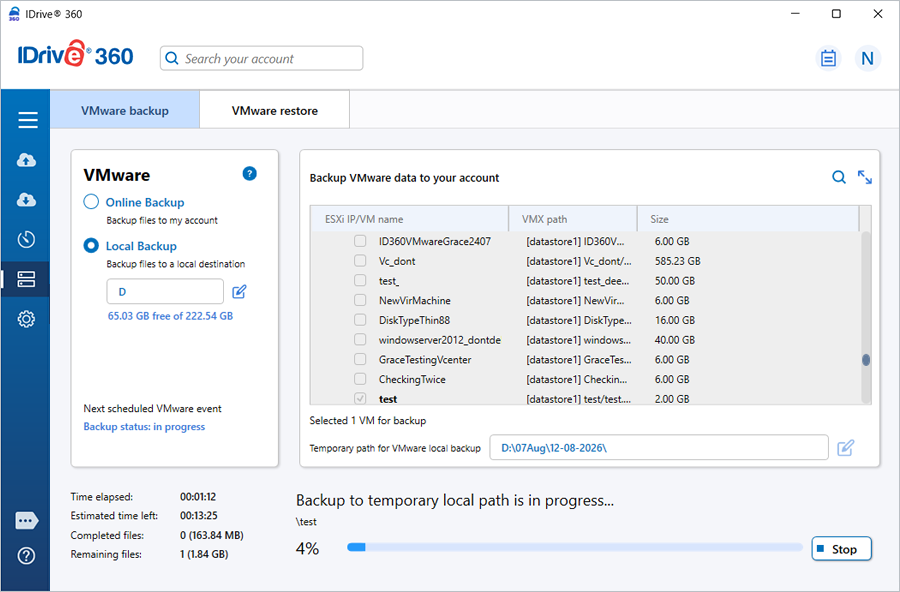
How do I backup VMware virtual machines to a network computer?
To backup VMware virtual machines to a computer on the local network,
- Go to 'Server Backup'.
- Click 'VMware'.
- Enter the server IP address, Port, Username, and Password.
- Click 'Connect'.
- Select 'Local Backup'.
- Select the virtual machine(s).
- Click next to 'Temporary path for VMware local backup'.
- Click 'Network'.
- Select the required computer.
- Enter the authentication credentials if prompted.
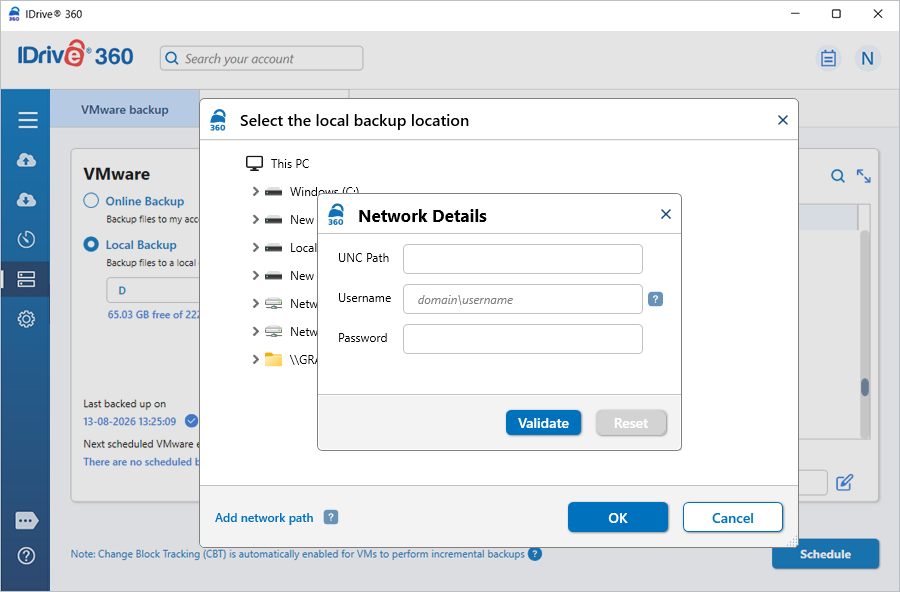
- Click 'Schedule'.
- Configure the backup schedule or start the backup immediately.
How do I backup VMware virtual machines to a network location or NAS?
To backup VMware virtual machines to a network location,
- Go to 'Server Backup'.
- Click 'VMware'.
- Enter the server IP address, Port, Username, and Password.
- Click 'Connect'.
- Select 'Local Backup'.
- Select the required virtual machines.
- Click 'Verify access to network location for backup'.
- Enter the UNC path (''\\IP Address or Computer name\dir''), username, and password.
- Click 'Schedule'.
- Configure the backup schedule or start the backup immediately.
What are the system requirements for IDrive® 360 VMware Backup?
IDrive® 360 VMware Backup supports the following environment:
- ESXi (6.7, 7.0, 8.0), vCenter (6.7, 7.0, 8.0)
- Windows 64-bit operating system (Windows 7 or later)
- Minimum 2 GB RAM
- Sufficient free disk space to store temporary backup and restore data
Do I need to turn off or shut down virtual machines to perform a backup?
No. You do not need to shut down your virtual machines before performing a backup. IDrive® 360 supports backing up virtual machines while they are running.
How secure is data transferred during VMware backup and restore?
IDrive® 360 implements military-grade 256-bit AES encryption to encrypt all data transferred during VMware backup and restore operations.
Do backup and restore operations handle independent disks and RDM disks?
If a virtual machine contains independent disks or physical-mode Raw Device Mapping (RDM) disks, those disks are excluded from snapshot-based backup and restore operations.
Does IDrive® 360 support backing up virtual machines with Unicode or Windows special characters in their names?
No. IDrive® 360 does not support backing up virtual machines whose names contain Unicode characters or Windows special characters.
Does VMware restore support different virtual disk format conversions?
Yes. During the restore process, VMware virtual disks can be converted to different virtual disk formats.
Supported formats include:
- RAW image
- Microsoft Hyper-V VHD (fixed)
- Microsoft Hyper-V VHDX
This allows VMware virtual machine backups to be restored for use with Hyper-V or converted for physical machine deployments.
Does IDrive® 360 VMware Online Backup support SAN and HotAdd transport modes?
Yes. IDrive® 360 VMware Online Backup supports both SAN and HotAdd transport modes, allowing efficient data transfer based on your VMware deployment and infrastructure configuration.
These transport modes help optimize backup performance by using the most appropriate data path available in your environment.
How do I restore virtual machines to a VMware server using Online Restore?
IDrive® 360 supports restoring VMware virtual machines using Online Restore.
To restore a virtual machine using Online Restore,
- Sign in to the IDrive® 360 desktop application.
- Go to 'Server Backup' > 'VMware' > 'VMware restore' > 'Online Restore'.
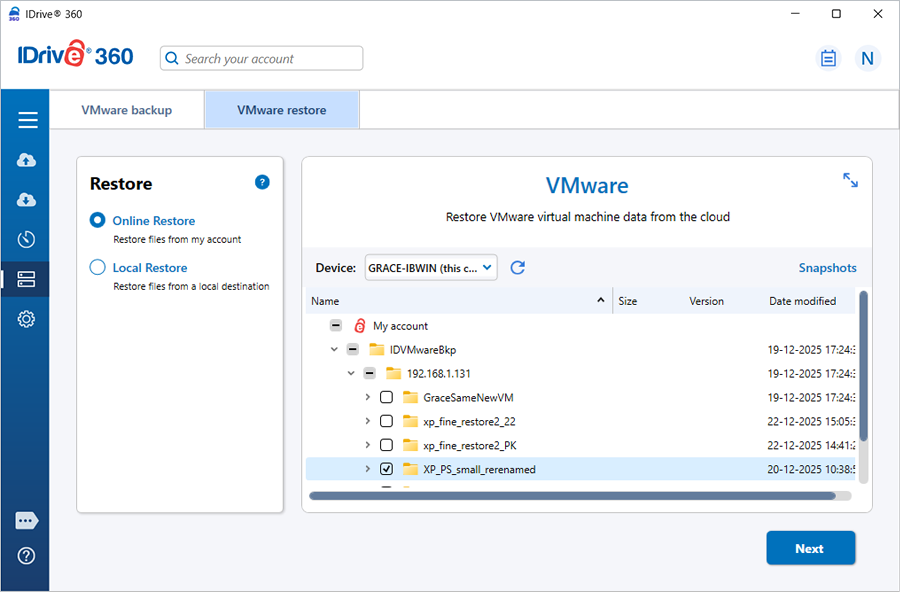
- Select the VM from the 'IDVMwareBkp' backup set folder and click 'Next'.
- In the 'Restore VMware virtual machine data' dialog, choose one of the following restore options:
- Restore to VMware vSphere
- Restore as virtual disk
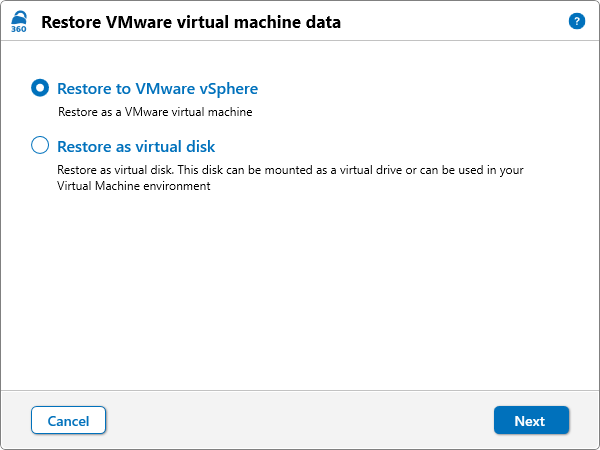
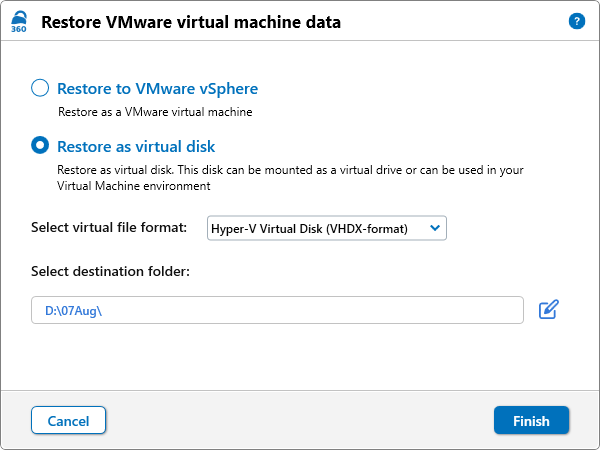
If 'Restore as virtual disk' is selected:
- Choose the required virtual disk format (RAW image, VHD, or VHDX).
- Select the destination folder where the virtual disk should be restored.
- Click 'Finish' to start the restore.
A restore summary is displayed after the operation completes successfully.
If 'Restore to VMware vSphere' is selected:
- Click 'Next'.
- Enter the VMware server credentials and click 'Connect'.
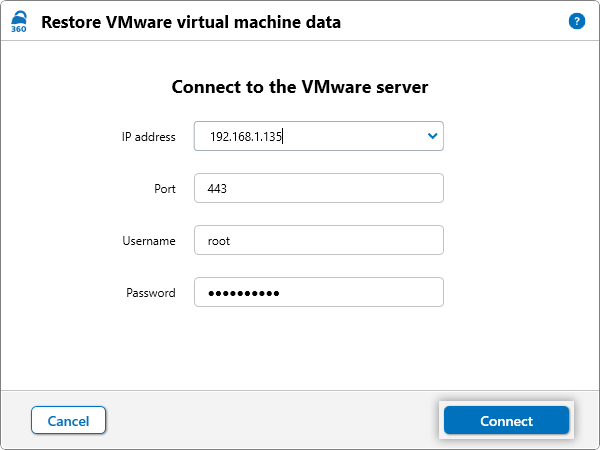
- If the credentials are for vCenter, the 'Target Host' list appears. Select the required ESXi host and click 'Next'.
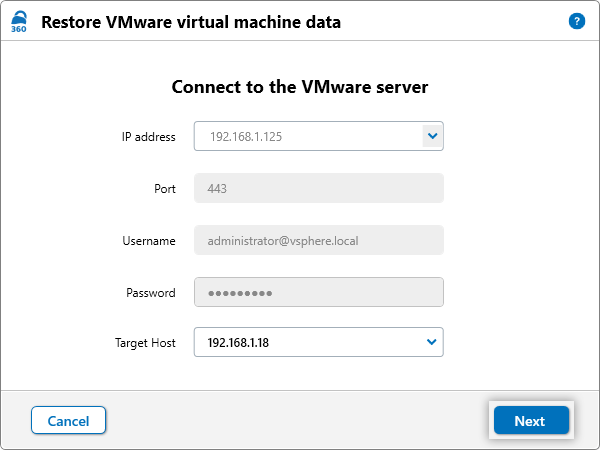
- If the credentials are for ESXi, the 'Restore VMware virtual machine data' dialog appears.
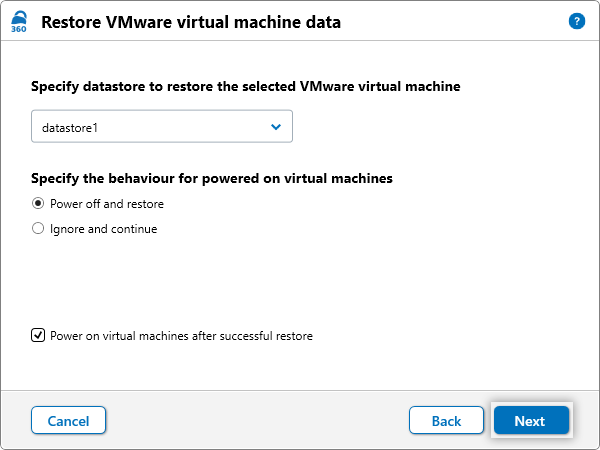
- Select the datastore where the virtual machine should be restored.
- Choose one of the following power state options:
- Power off the VM before restore
- Ignore and continue (the restore fails if the VM is powered on)
- Power on the VM after successful restore
- Click 'Next'.
In the 'Restore VMware virtual machine data' dialog:
- By default, 'Existing machine' is selected.
- To overwrite an existing virtual machine, select 'Overwrite the existing virtual machines'.
- To restore the virtual machine with a different name, modify the VM name under 'Restore as'.
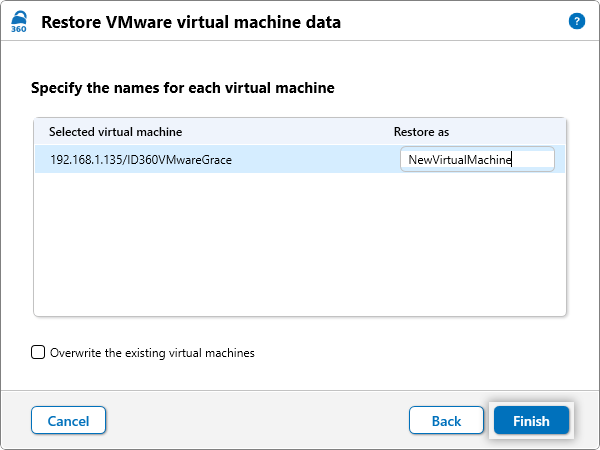
Click 'Finish' to start the restore.
A restore summary is displayed after the operation completes successfully.
How do I restore virtual machines to a VMware server using Local Restore?
IDrive® 360 supports restoring VMware virtual machines using Local Restore to ESXi or vCenter servers.
To restore a virtual machine using Local Restore,
- Sign in to the IDrive® 360 desktop application.
- Go to 'Server Backup' > 'VMware' > 'VMware restore' > 'Local Restore'.
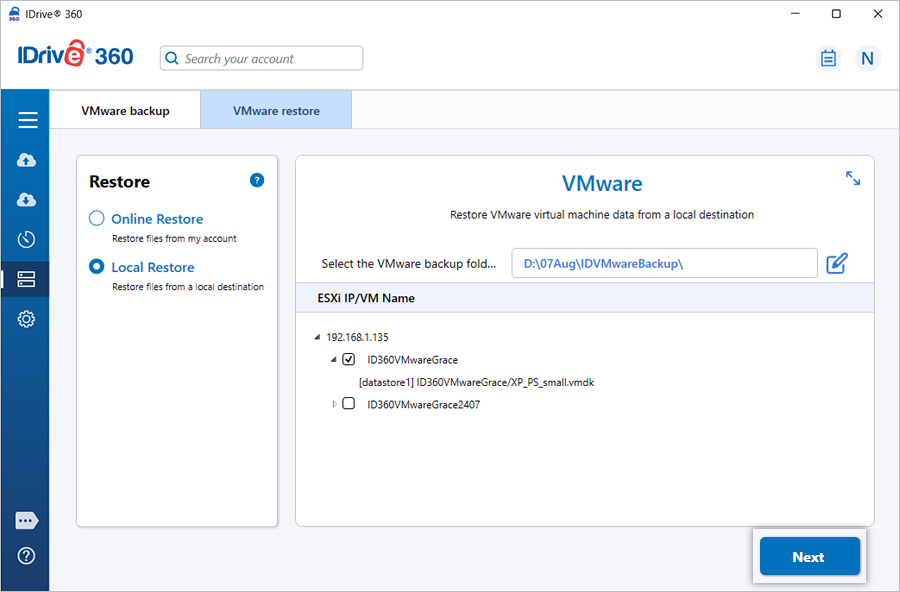
- Locate and select the 'IDVMwareBackup' or 'IDVMwareBkp' backup set folder from your local drive.
- Select the required virtual machine from the backup set and click 'Next'.
- Enter the VMware server credentials and click 'Connect'.
- If the credentials are for vCenter, the 'Target Host' list appears. Select the required ESXi host and click 'Next'.
- If the credentials are for ESXi, the 'Restore VMware virtual machine data' dialog appears.
In the 'Restore VMware virtual machine data' dialog:
- By default, 'Existing machine' is selected.
- To overwrite an existing virtual machine, select 'Overwrite the existing virtual machines'.
- To restore the virtual machine with a different name, modify the VM name under 'Restore as'.
Click 'Finish' to start the restore.
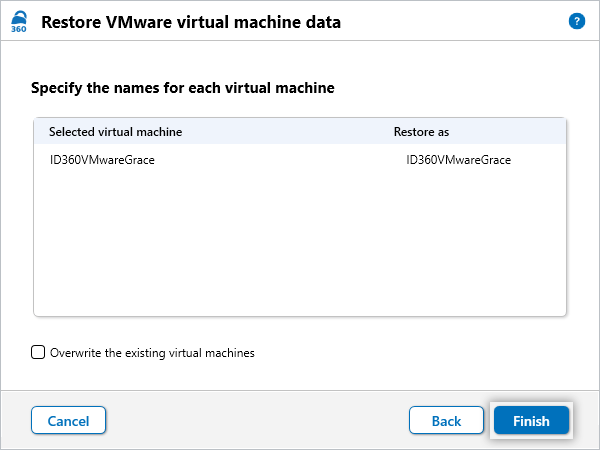
A restore summary is displayed after the operation completes successfully.
How do I restore virtual machines from a vCenter server?
IDrive® 360 supports restoring VMware virtual machines from a vCenter server using Online Restore and Local Restore.
To restore virtual machines from a vCenter server,
- Sign in to the IDrive® 360 desktop application.
- Go to 'Server Backup' > 'VMware' > 'VMware restore'.
- Choose 'Online Restore' or 'Local Restore', based on where the backup is available.
- For Online Restore, select the virtual machine from the 'IDVMwareBkp' backup set folder.
- For Local Restore, locate and select the 'IDVMwareBackup' or 'IDVMwareBkp' backup set folder from your local drive.
- Select the required virtual machine(s) and click 'Next'.
- Enter the VMware server credentials and click 'Connect'.
- If the credentials are for vCenter, select the required ESXi host from the 'Target Host' list and click 'Next'.
- Continue with the restore process based on the selected restore type.
- For Online Restore, follow these steps.
- For Local Restore, follow these steps.
A restore summary is displayed after the operation completes successfully.
How can I restore VMware virtual machines from a network location?
IDrive® 360 allows you to restore VMware virtual machines from a network computer using Local Restore.
To restore virtual machines from a network location,
- Ensure the 'IDVMwareBackup' or 'IDVMwareBkp' folder is available on the network computer or network share.
- Sign in to the IDrive® 360 desktop application.
- Go to 'Server Backup' > 'VMware' > 'VMware restore' > 'Local Restore'.
- Click 'Browse' to locate the backup set.
- In the 'Browse My Computer' dialog, click 'Network' and select the required computer.
- Enter the network authentication credentials.
- Select the 'IDVMwareBackup' or 'IDVMwareBkp' folder.
- Select the required virtual machine(s) and click 'Next'.
- Enter the VMware server credentials and click 'Connect'.
- If the credentials are for vCenter, select the required ESXi host from the 'Target Host' list and click 'Next'.
- Continue with the restore process.
A restore summary is displayed after the operation completes successfully.
Can I restore VMware virtual machines from a network-mapped drive or NAS drive?
Yes. IDrive® 360 allows you to restore VMware virtual machines from a network-mapped drive or NAS drive using Local Restore.
To restore virtual machines from a network-mapped drive or NAS drive,
- Ensure the network-mapped drive or NAS drive is accessible from the system running the IDrive® 360 desktop application.
- Verify that the 'IDVMwareBackup' or 'IDVMwareBkp' folder is available on the network-mapped drive or NAS drive.
- Go to 'Server Backup' > 'VMware' > 'VMware restore' > 'Local Restore'.
- Browse and select the 'IDVMwareBackup' or 'IDVMwareBkp' folder.
- Select the required virtual machine(s) and click 'Next'.
- Enter the VMware server credentials and click 'Connect'.
- If the credentials are for vCenter, select the required ESXi host from the 'Target Host' list and click 'Next'.
- For Online Restore, follow these steps
- For Local Restore, follow these steps
A restore summary is displayed after the operation completes successfully.
Is an additional or external storage volume required for VMware backup?
VMware Online Backup does not require an additional or external storage volume. However, ensure that at least 2.5 GB of free space is available on the C: drive for temporary files during the backup process.
VMware Local Backup requires an additional or external storage volume. Ensure that the selected temporary backup location has sufficient free disk space to store the backup data.
Can I attach a VMDK file from IDrive® 360 VMware Backup to a different VMware server?
Yes, you can attach a VMDK file from IDrive 360 VMware backup to a different VMware server.